
Bangla Unicode Settings Guide
Some sections of Sonali Exchange are blessed by the Unicode. To read or write Bangla in your browser or any other applications you must enable Bangla Unicode support to your system. The following steps will help you to setup your computer for Bangla Unicode support.
Add Bangla (Bengali) Unicode in Windows XP
Step 01:
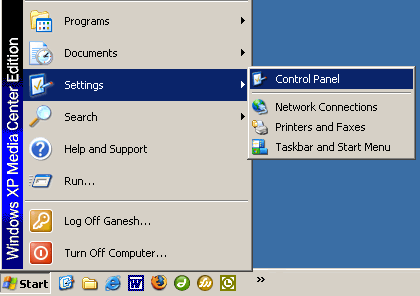
Go to Windows Control Panel. If you do not know where/what is control panel, just open My Computer then type control panel and hit enter. Or click Start >> Settings >> Control Panel
Step 02:
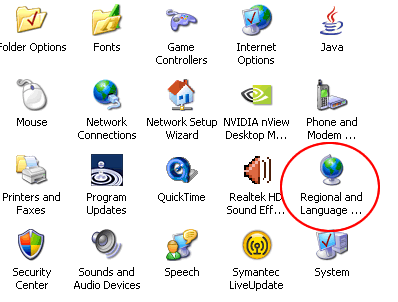
In Control Panel, depending on your view setting of the control panel, click on Regional and Language Options.
Step 03:
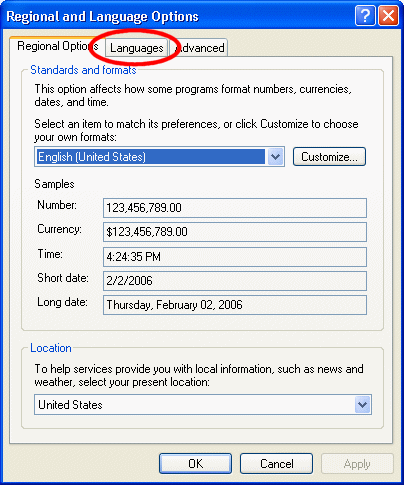
Click on Languages tab from the displayed window.
Step 04:
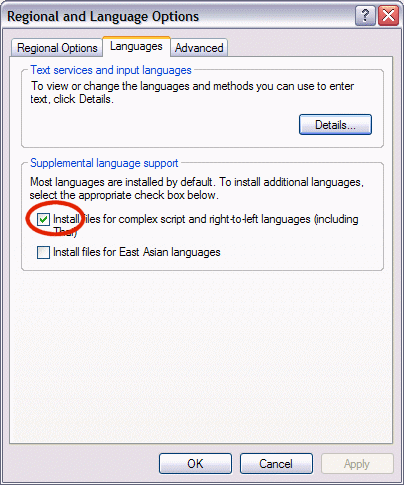
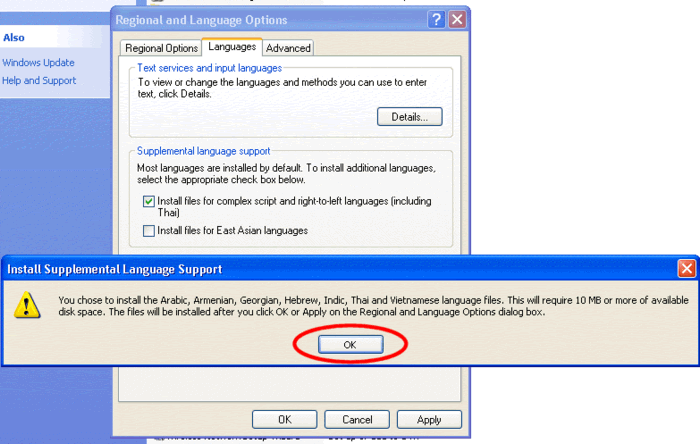
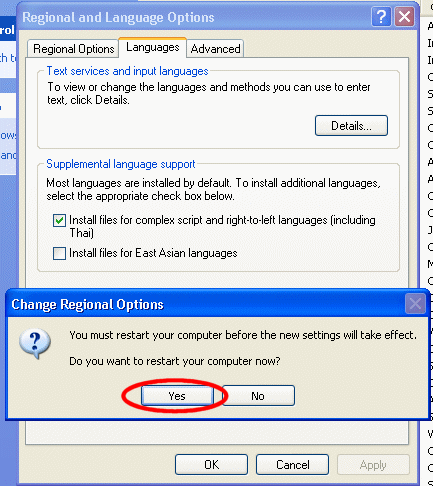
Select the option Install files for complex script and right-to-left languages (including Thai)
Step 05:
Click Ok on the pop up window.
Step 06:
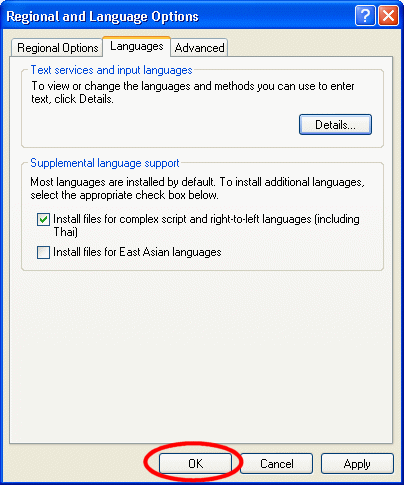
Click Ok on the bottom of displayed window.
Step 07:
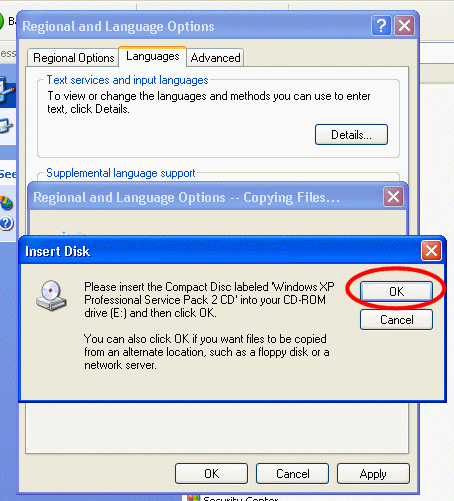
Windows may ask you to insert Windows XP CD. Click Ok.
Step 08:
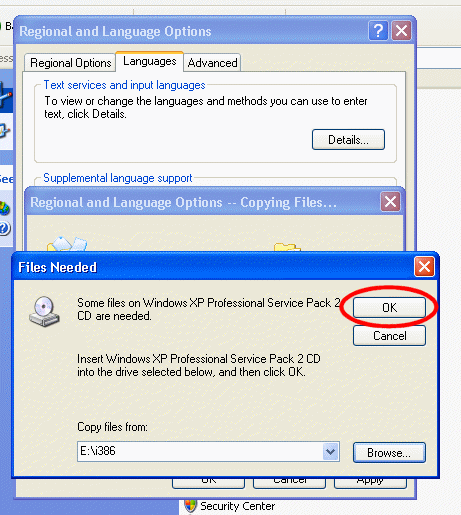
Insert your Windows XP CD or Browse to your Windows XP installation source location. Once you identified the location, click on Ok.
Step 09:
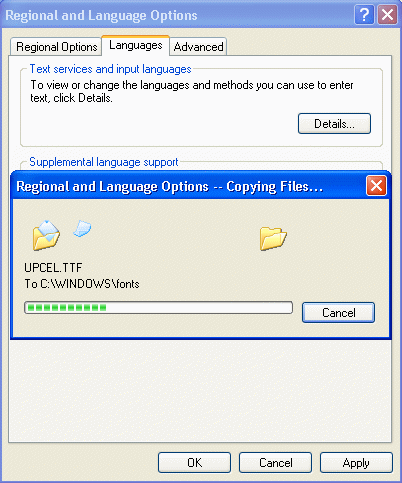
Wait for Windows to finish installing all files.
Step 10:
Windows will ask you to restart your computer. Click Yes.
Add Bangla Unicode in Windows 2000
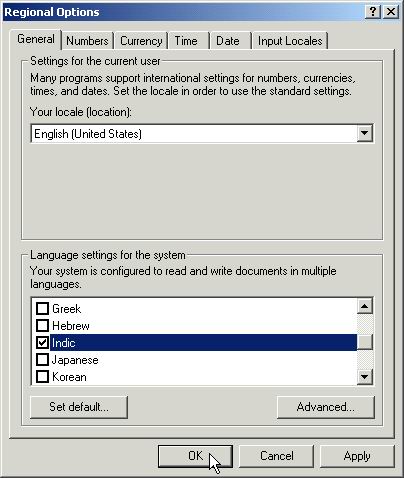
Go to Control Panel and select Regional Options
On General tab, select Indic from Language settings for the system box.
Click OK and restart your system.